What is new in Kitchen Tools & Recipes 3.3
A new look in warm white and herb green, a shorter menu, Home Screen and Lock Screen widgets, and a pin that puts any chart, page or recipe one tap away.
Version 3.3 is about getting to the right page faster. It has a new look, a shorter menu, widgets for the Home Screen and the Lock Screen, and a pin on every page that turns it into a shortcut. The charts and your own recipes stay free, with no account and no limit.
A new look
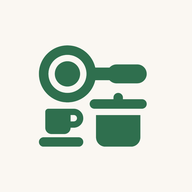
The light theme is warm white with a herb-green accent, and the app now opens in it. The app icon follows suit: the kitchen tools drawn in herb green on warm white. If you prefer a dark screen, the dark theme is warm near-black with an ember accent, a tap away in Settings.
A shorter menu
The menu is down to six rows: My Recipes, Charts, Make something, Shopping List, Subscriptions and Settings.
- Charts holds all four charts, each on its own tab along the bottom: Conversions, Cooking, Substitutions and Shelf life.
- Make something holds the Recipe Reader, the Recipe Creator and the Meal Planner, as Read, Create and Plan tabs.
Widgets
There are eleven, and each one is a door into the app:
- Kitchen charts, a medium Home Screen widget with the four charts side by side, one tap each.
- Any page, a small widget or a Lock Screen widget, round or rectangular, that opens the page you choose in Edit Widget.
- One widget for each page: the four charts, My Recipes, the Recipe Reader, the Recipe Creator, the Meal Planner and the Shopping List, in the same small and Lock Screen sizes.
To add one, touch and hold an empty part of the Home Screen, tap Edit, then Add Widget, and search for Kitchen Tools. On the Lock Screen, touch and hold it, tap Customize, then the widget area under the clock. Widgets need iOS 17 or later, and they always use the app’s light colours.
The pin
Every chart, My Recipes, the Recipe Reader, the Recipe Creator, the Meal Planner, the Shopping List and each of your recipes has a pin at the top right. Tap it to:
- put the page on the press-and-hold menu of the app icon, where Conversions, Cooking, Shelf life and My Recipes sit to begin with;
- give the page a phrase for Siri, so saying it opens the app there;
- see how to put the page’s widget on the Home Screen.
On a chart, the pin takes the tab you are looking at, so a single tab, such as Baking Weights or Dairy shelf life, can have a shortcut of its own.
Open on the page you use most
Settings has a new choice, Open the app on. If you mostly reach for the conversion chart, the app can start there.
Prices are unchanged
The Recipe Reader, the Recipe Creator and the Meal Planner are still separate subscriptions, by the week or by the month, and the Everything plan still covers all three, with a 3-day free trial on every monthly plan. See Pricing for the current amounts, and Widgets and shortcuts for more on the new shortcuts.